Administrators
Adding coders
New coders will need to have one of our Orygen contacts responsible for managing this project send a request to support@logicly.com.au. Logicly will invite the new coder via our normal process, outlined in our MFA User Guide
Requesting a data upload
Summary of upload process

Orygen staff log-in to the administration site and generate an upload link, specifying;
the data provider,
the date range of the data required, and
the email address for the appropriate data provider representative.
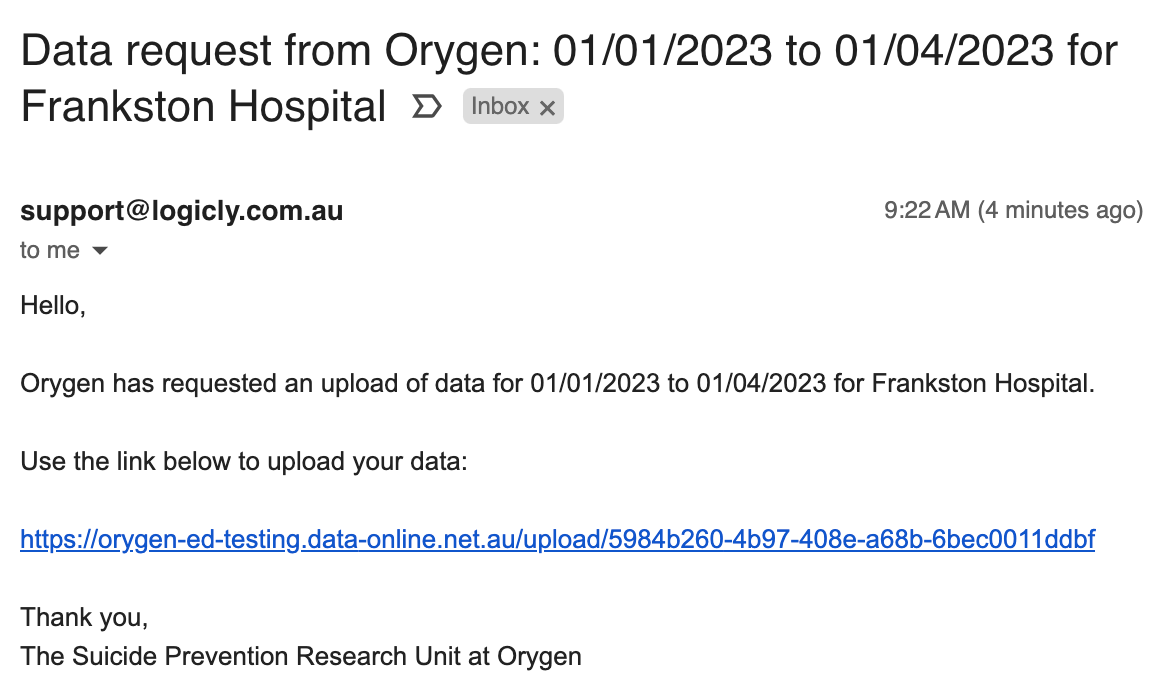
This automatically sends an email containing a link to a page via which the data provider can upload their file.
The file is uploaded into encrypted object storage and then validated. If the file passes validation its contents are imported into the database, otherwise it is immediately deleted.
Successfully validated CSV files are also retained in the encrypted object storage in order to allow for re-importing into the database should that be needed, for example to deal with a data normalisation error in the system code.
Upload request operations
Generate and send an upload link
Generate and send an upload link:
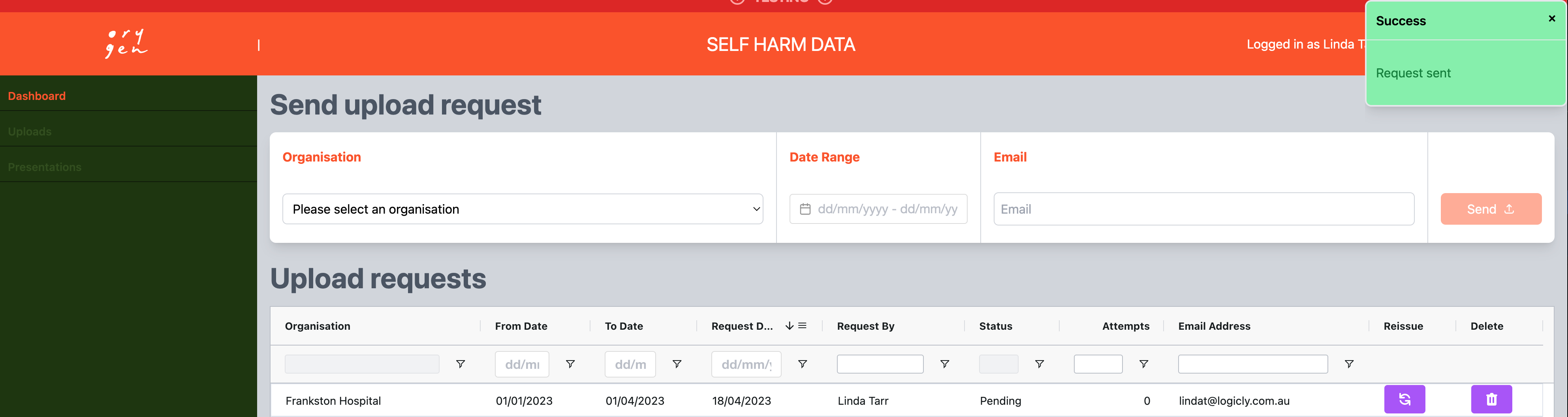
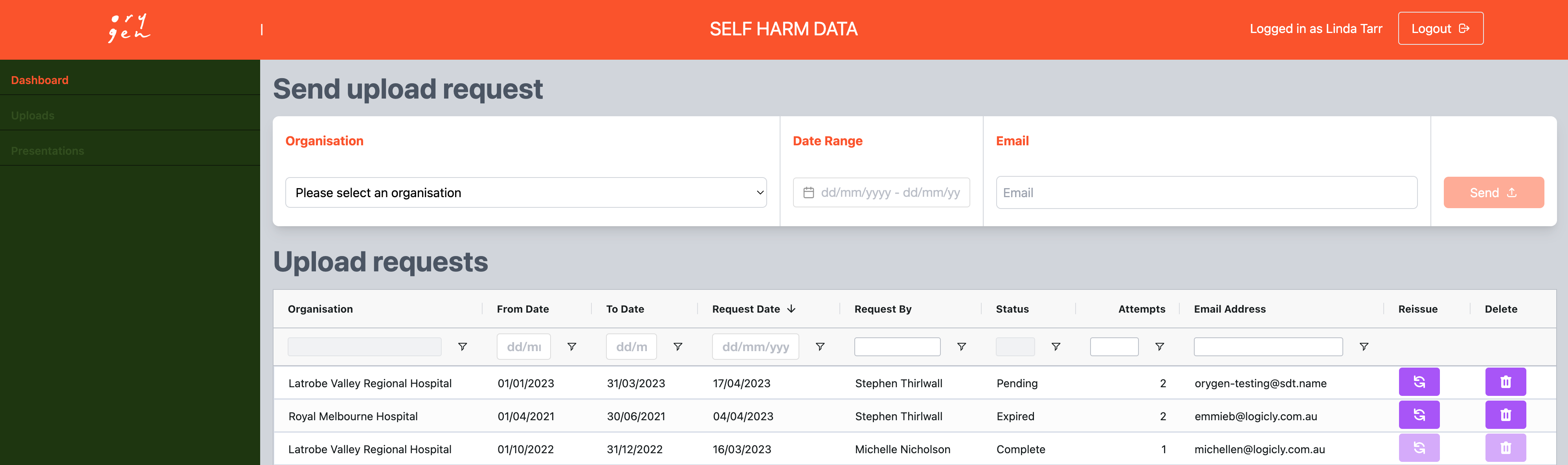
Ensure you are on the Dashboard tab
Select an Organisation name from the predefined drop-down list
Select a start and end date to set the data date range being collected
Enter a valid email address for the organisations data upload contact. The upload link will be sent to this person.
The Send button will now be active. Click the Send button to send out an automated email to the nominated email address.

Confirmation that an upload request email has been sent:
a green Success message will show to the top right of the screen
the organisation name, along with the requested date range, will now show in a new row of the Upload requests table with a status of Pending
Remove access to an upload link
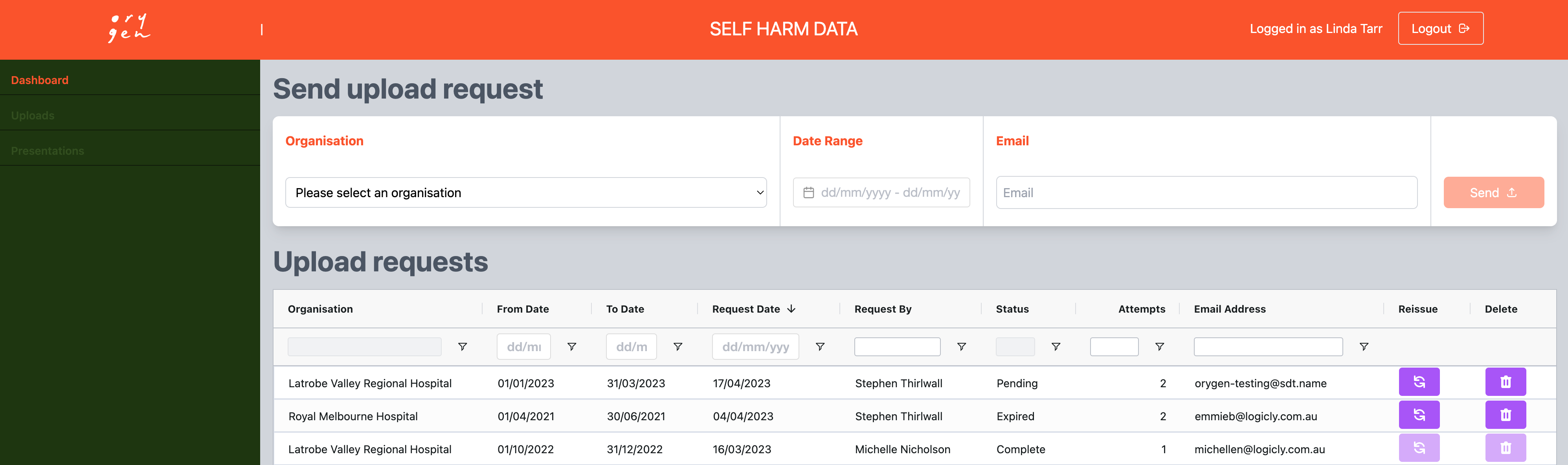
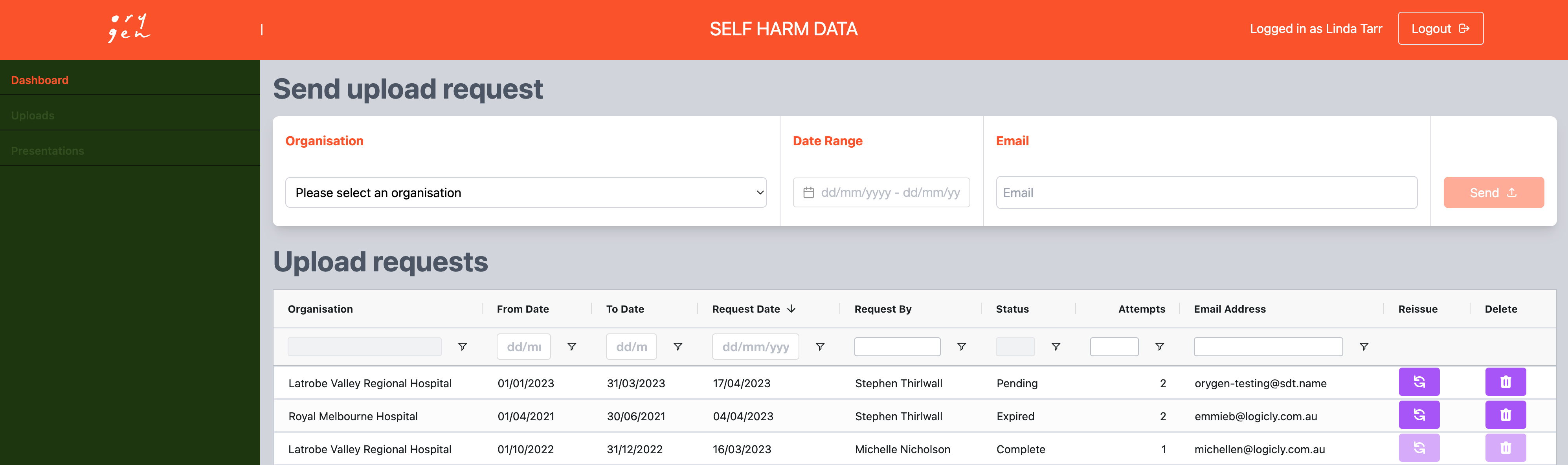
The Upload Requests table will contain a row for each generated Data Upload link sent.
In this table, locate the relevant row for the upload request you wish to remove.
Under the column titled Delete (last column of table) click the purple button with the bin icon. This will remove the Upload request from this table and also block access to upload data should anyone attempt to use the deleted link.
NOTE: Upload request links cannot be deleted if status is Complete
Resend an existing upload link
Resend to same contact:
The Upload Requests table will contain a row for each generated Data Upload link sent.
In this table, locate the relevant row for the upload request you wish to resend.
Under the column titled Reissue (second last column of table) click the purple button to resend the Upload data request email to the contact listed in the Email Address column.
NOTE: Upload request links cannot be resent if status is Complete
Resend to new contact:
The Upload Requests table will contain a row for each generated Data Upload link sent.
In this table, locate the relevant row for the upload request you wish to resend to a new contact.
Follow the steps to remove the existing link.
Then, create a new upload request link for the new contact, following the instructions in section upload request steps.
NOTE: Upload request links cannot be deleted if status is Complete
Resend an Expired link:
The Upload Requests table will contain a row for each generated Data Upload link sent.
In this table, locate the relevant row for the expired upload request you wish to reopen and resend.
Under the column titled Reissue (second last column of table) click the purple button to reopen and resend the Upload data request email to the contact showen in the Email Address column.
Upload Request table: status definitions
Pending: Upload request email has been sent, but data file has either not been uploaded yet or did not pass validation.
Expired: Link in upload request email has now expired. Links will expire 7 days after a request email is sent.
Completed: Data file has been successfully uploaded and passed validation.
Upload process from Data Provider perspective
An email, similar to the one pictured below, will be sent to the Email address of the Data provider you entered during the generate and send link steps.
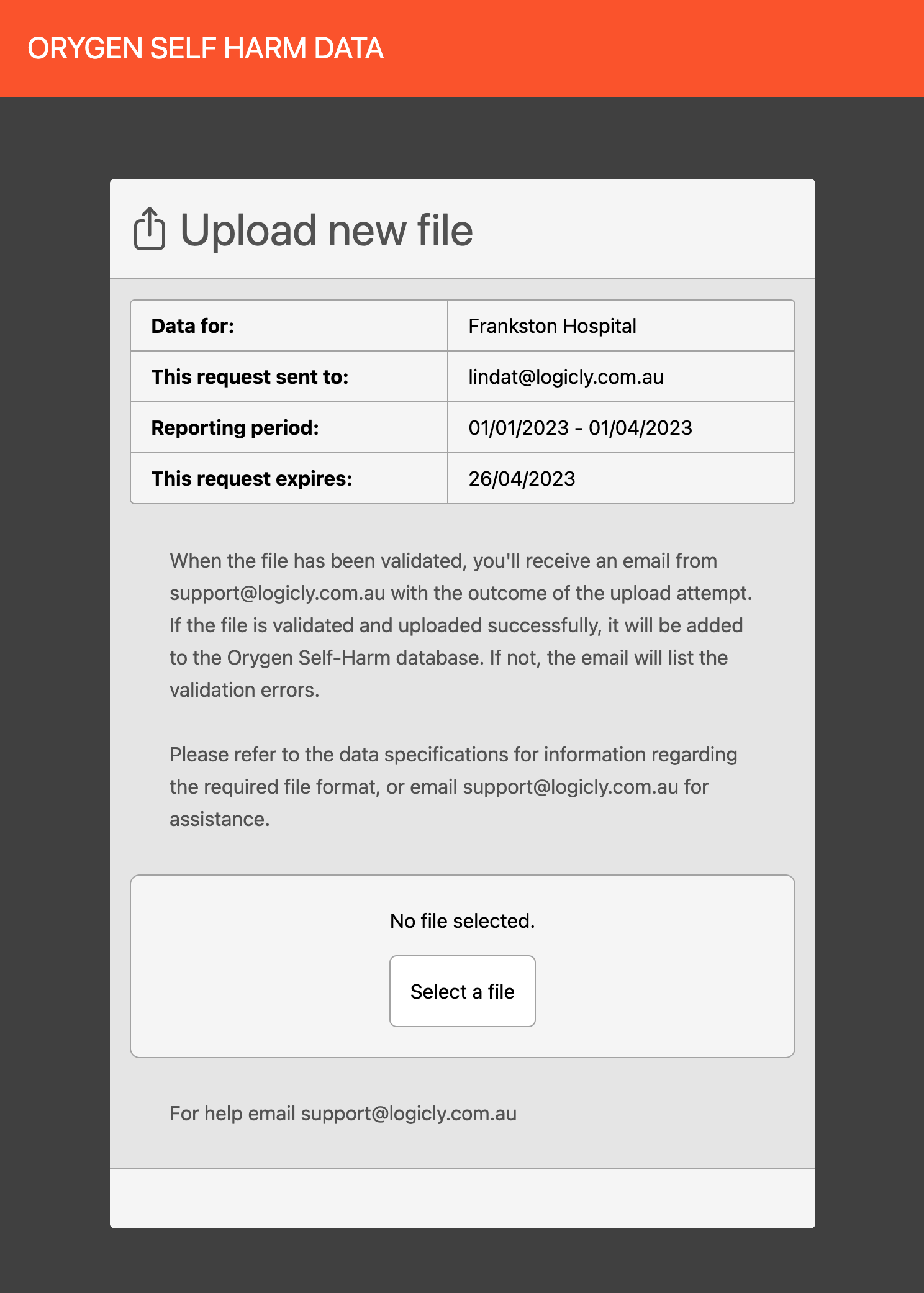
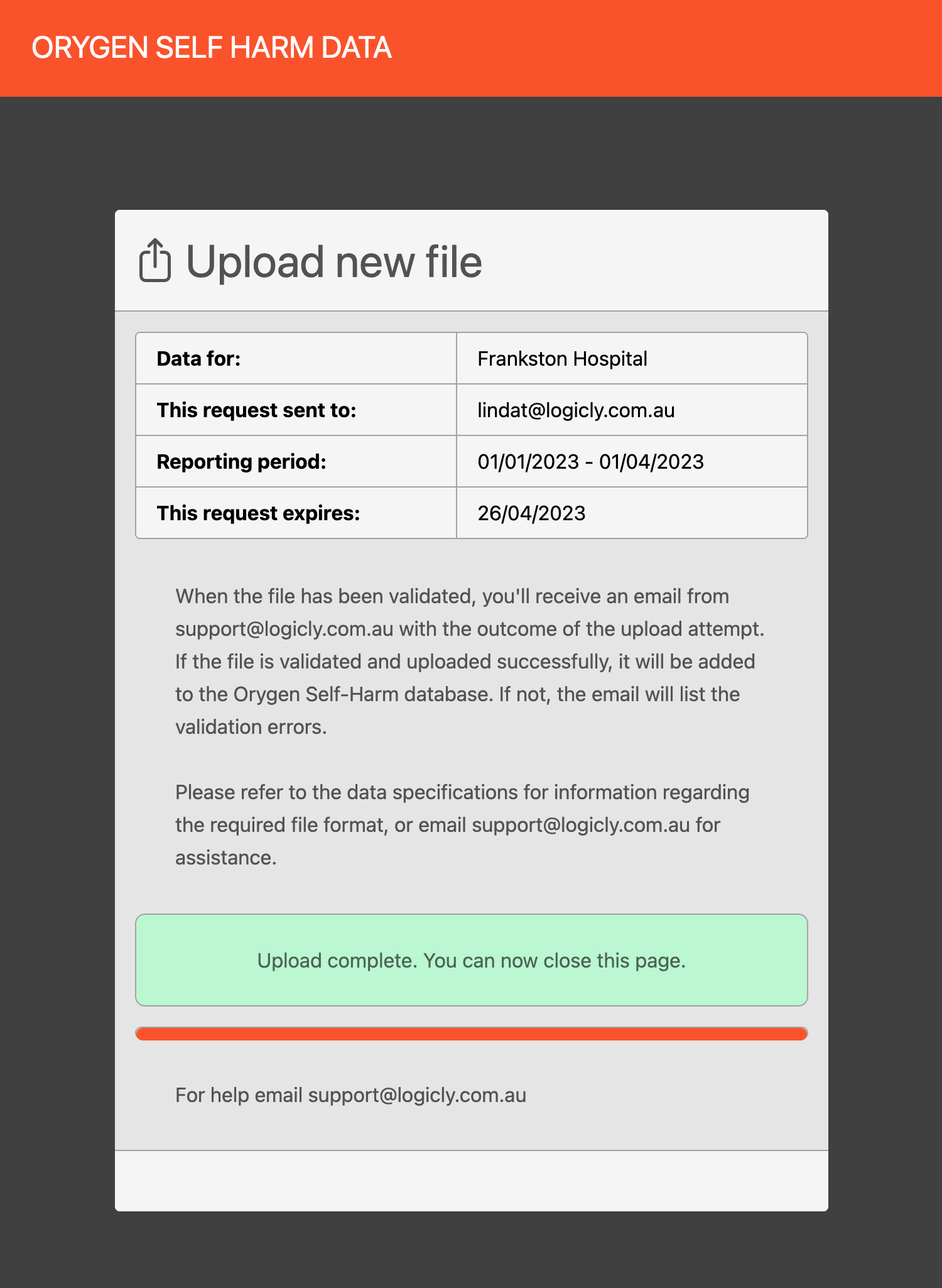
When the data provider clicks on the link in the request email, they will be taken to a secure internet page where a data file can be selected and uploaded.
When a file has been selected and uploaded, an Upload complete message will show for the data provider.
Their data file will then undergo validation. Depending on the outcome of the validation, the data provider will receve either an email to notify them that their data was successful, or an email listing any validation errors.
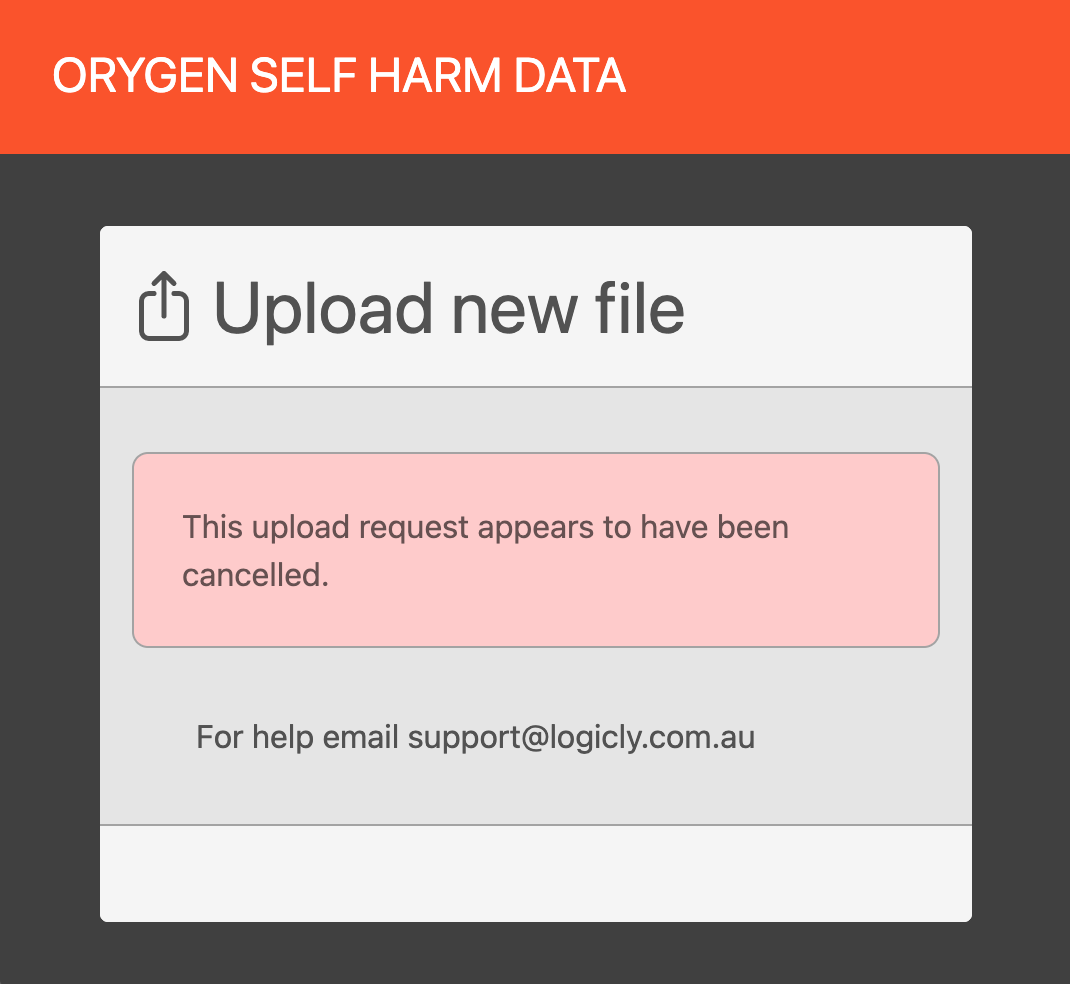
If an upload request has been removed, the Data Provider will see the below message when viewing their upload link:
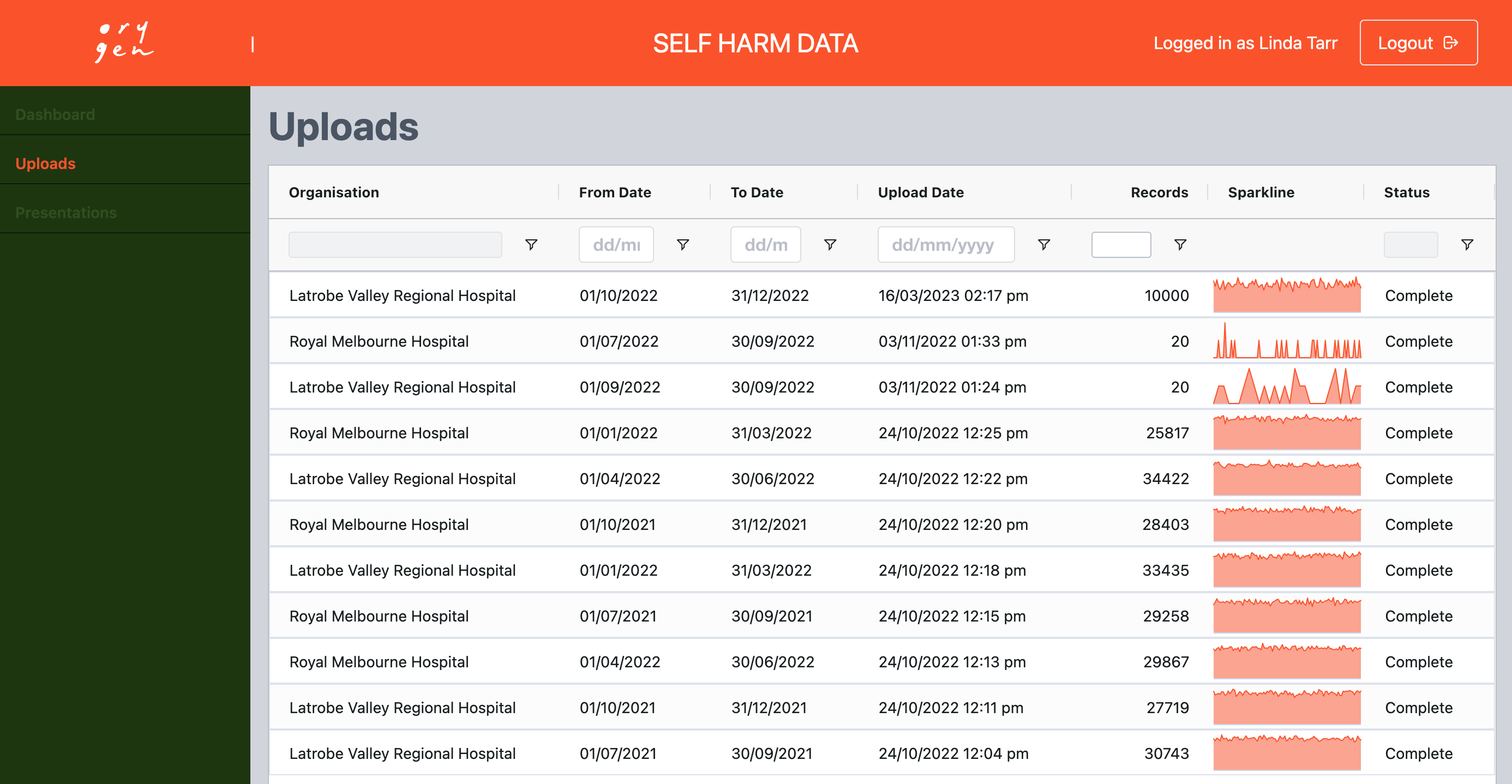
Viewing summary of uploaded data
Data curation